Introduction
Thanks for purchasing one of my framer website templates and for your support!
The following documentation should provide you with all the necessary basic information for you to get familiar with the way my templates are built and to start basic customisation.
Haven't bought a template yet? Choose your template here.
Important notes
Before you read this basic tutorial, remember that as Framer and the way I build Framer templates evolves, some parts of this tutorial may no longer apply to the specific template that you purchased.
This guide aims at getting your website up and running as fast as possible by teaching you how to edit the basics, but for more detailed guidance please find your specific tutorial here.
The screenshots used in this tutorial may not be from your chosen template but should look familiar.
If you're brand new to Framer, I recommend starting off with the Framer Fundamentals course to get familiar with the way it works.
The basics
Let's start off with the first things I recommend working on to get the template inline with your brand identity with as little effort as possible.
Colors
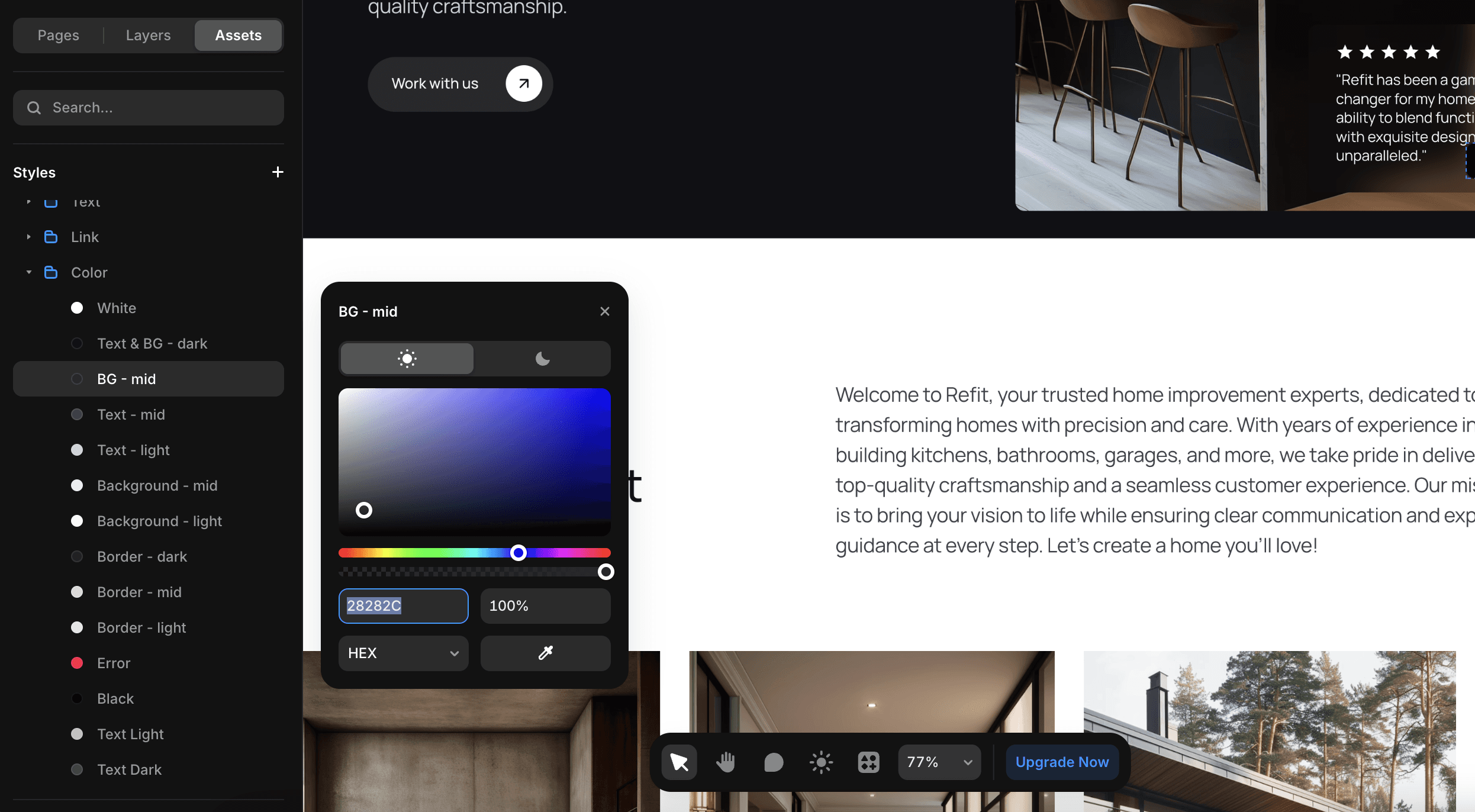
Colors are named based on where/how they are used. To edit the colors:
Click the "Assets" tab at the top of the left panel.
Scroll down to the "Styles" section.
Click on the folder named "Color".
Click one you want to edit and use the color picker or enter a HEX code.
I recommend editing the brand colors first, and then the "BG -" and "Text -" colors as they are used the most and will make the biggest difference to the look and feel of your site.
Text & Fonts
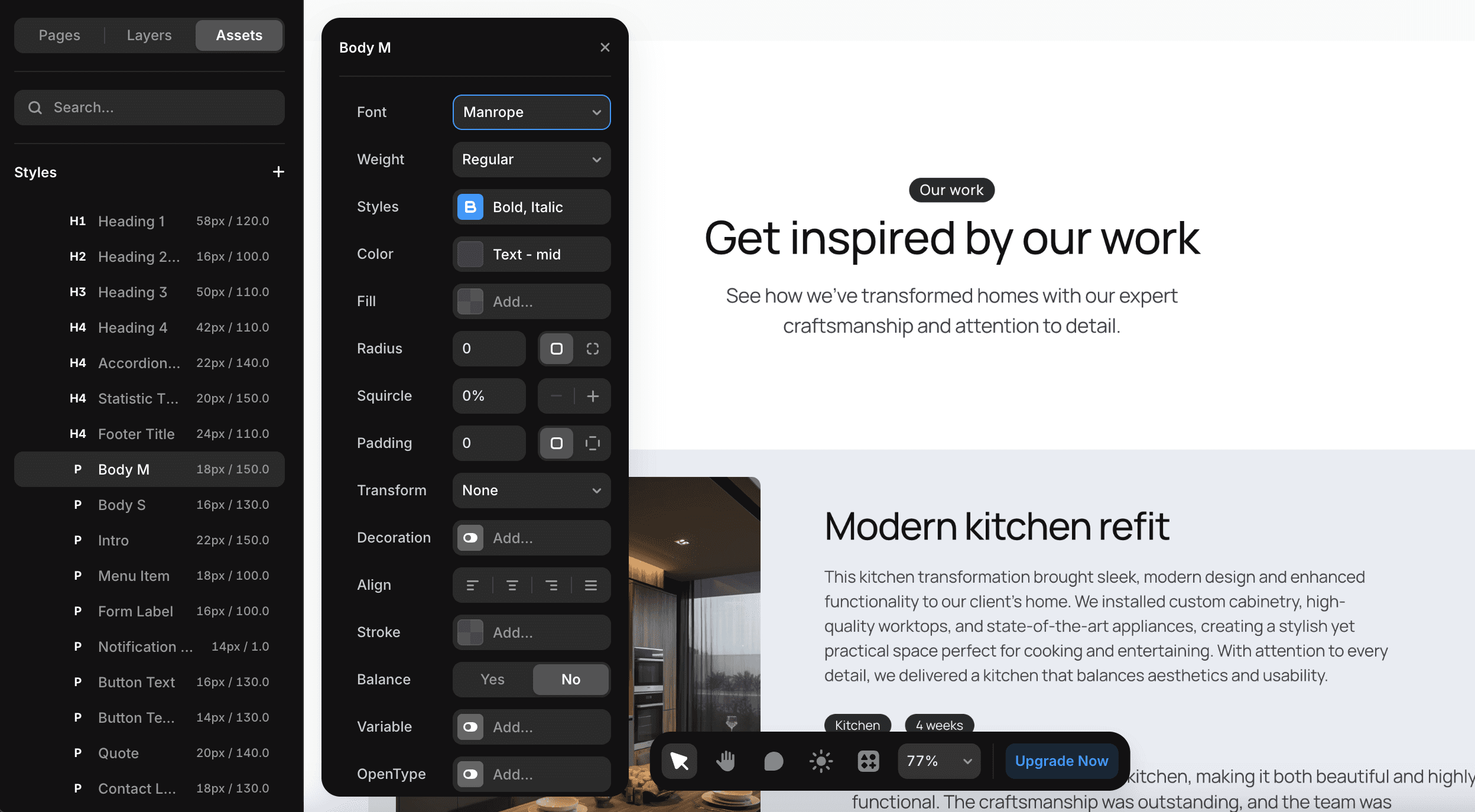
I recommend leaving the text styles as they are but if your brand uses a specific font, you can edit them in a similar way to the colors:
Click the "Assets" tab at the top of the left panel.
Scroll down to the "Styles" section.
Click on the folder named "Text".
Find the styles you want to edit. Blog and Legal page styles are in the CMS subfolder.
Click one you want to edit and change things like the font, font weight, and other properties.
Logo
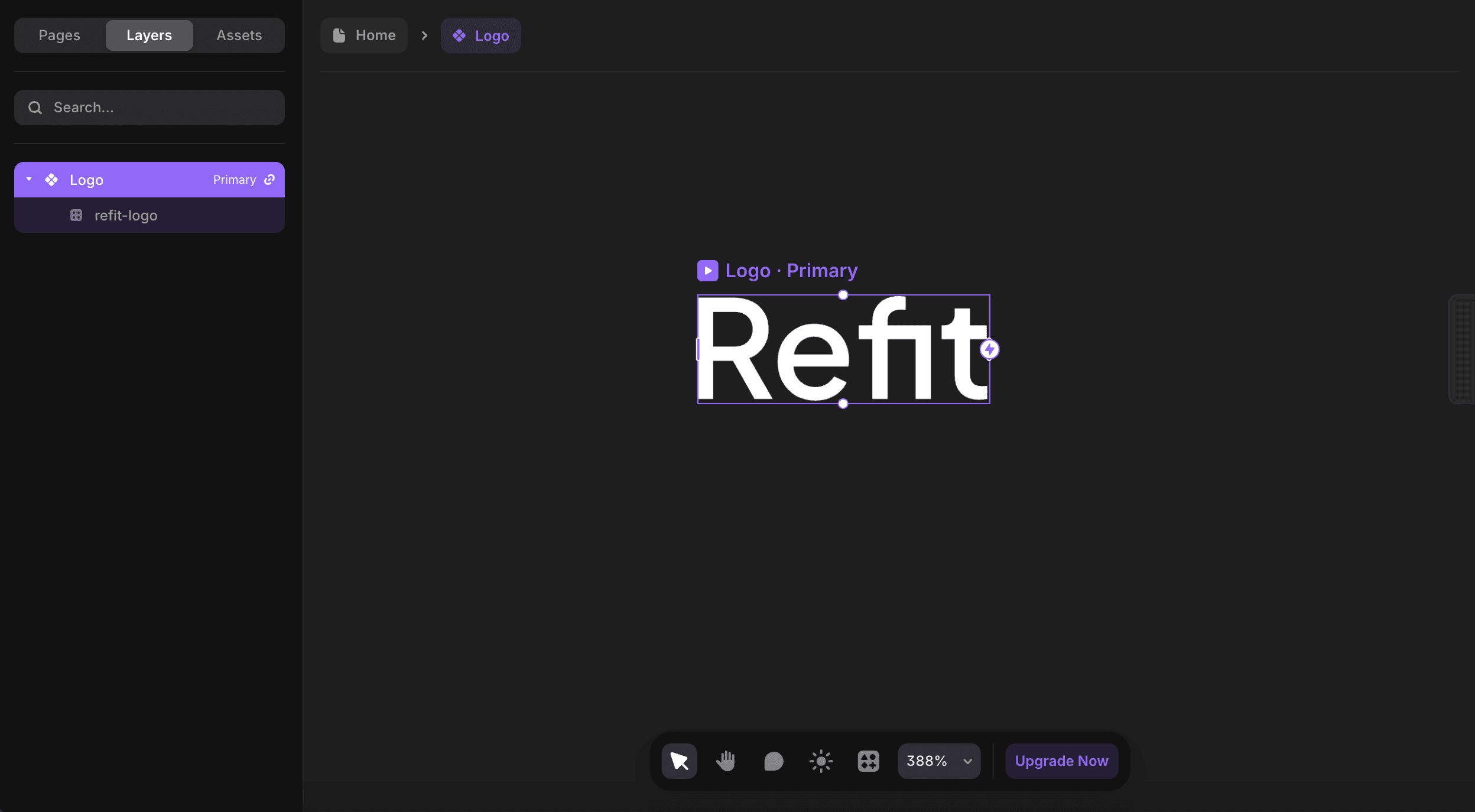
The logo is set up as a component which means you only need to change it in one place and it'll update in the header and footer.
Click the "Assets" tab at the top of the left panel.
Scroll down to the "Components" section.
Open the "Navigation" folder.
Click on the "Logo" component to open the component editor view.
Drag your logo onto the canvas, outside of the component (purple box). This will cause it to maintain it's aspect ratio.
Click the "Layers" tab at the top of the left panel.
Drag your logo from the canvas into the component so it becomes a child inside the component.
Delete the default template logo.
The logo component is set to a pixel width that works for the template. Because the aspect ratio of your logo is fixed, it'll scale down to that width. If your logo looks too small or too big, you can adjust the width of the component on the page and it your logo will scale up/down to match it.
Header and Footer
The Header and Footer are set up as components in the same way as the Logo. There may be a few bits of text (and links) to edit in them to bring your new site inline with your business, for example:
Location in the Header.
Copyright information in the Footer.
Email & Phone Number in the Footer.
Social media links in the Footer.
Address in the footer
Images, content, and components
Lastly and most importantly you need to go through and change all of the content across the site. You can keep any images you want as they are AI generated and copyright free, however I recommend changing them to real images from your business.
You can edit any block of text or image by double clicking it or by clicking it once and scrolling down to the "Content" or "Fill" field in the right panel.
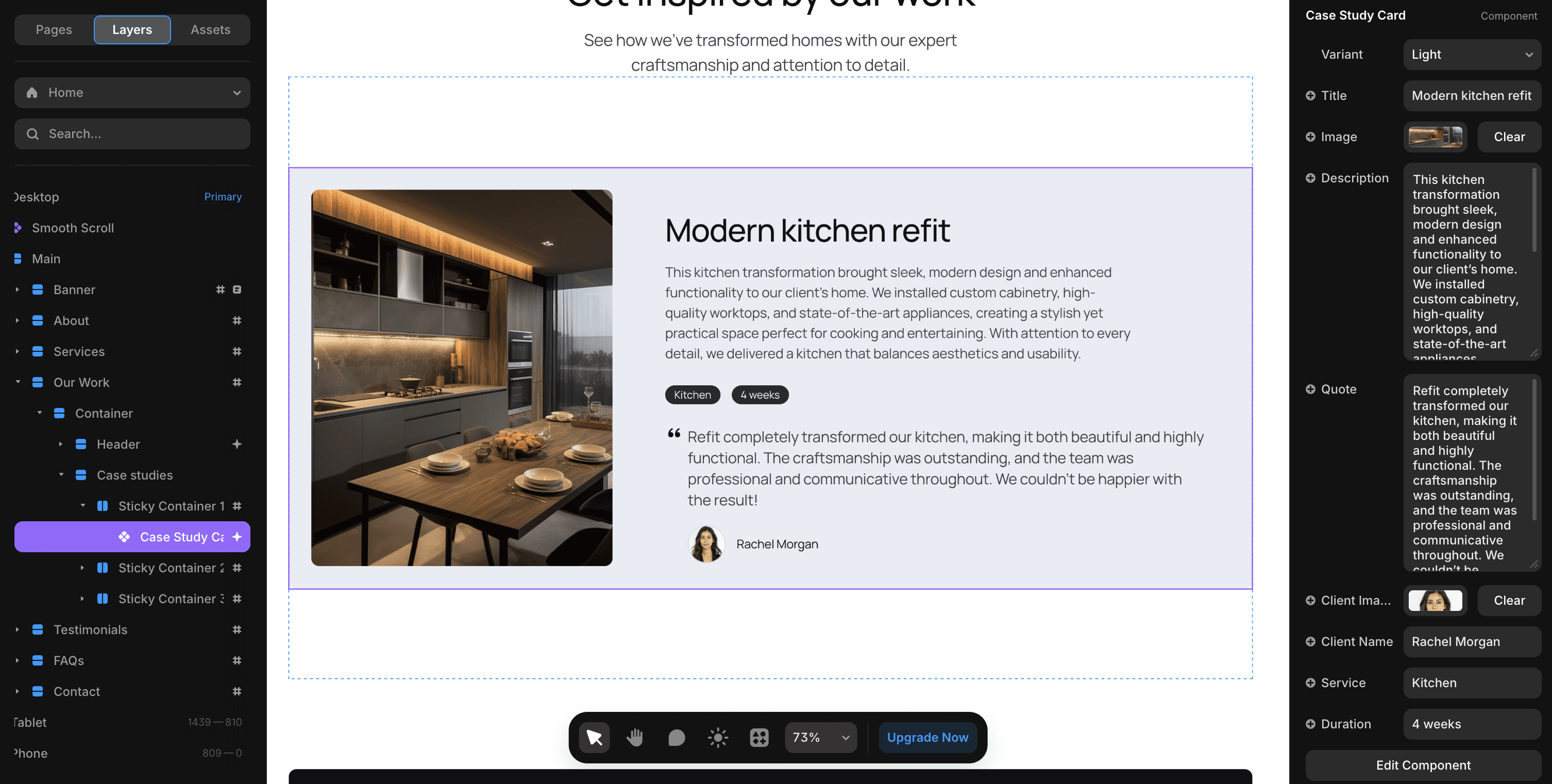
Text and images inside components (they're purple when you click them) will have clearly labeled variables in the right panel to edit them, as shown in the image below for the "Case Study Card" component from my Refit template.